
Getting Started with Social Trading on Aeron Markets
One screen at a time, from opening your account to your first connected trader. Each step shows you exactly what to click, and links to a short video if you would rather watch it done.
A few minutes with these pages and you will be set up. Your progress is saved on this device. Use the Menu button at the top any time to move around. Steps that have a video lesson show a Watch the lesson button. The videos are optional: the text and screenshots on each step already walk you through everything. And if any term is new to you, the Glossary link at the bottom of every screen explains it all in plain English.
Open your account
Register, get your credentials, upload your KYC.
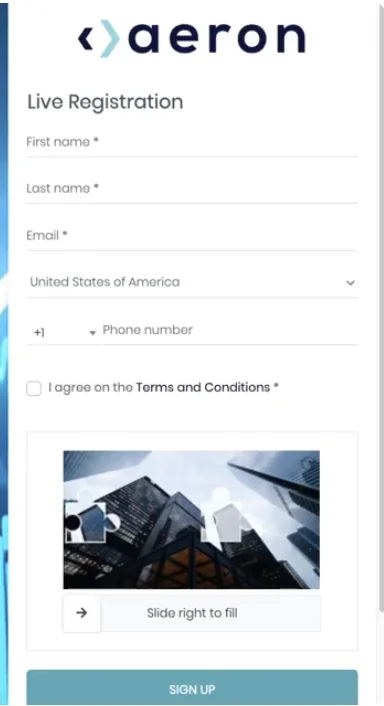
Register using your introducer's link
Watch the lesson: KYC and Onboarding WalkthroughOptionalUse the unique link provided by your introducer to open the Aeron Markets live registration form. Fill in your name, email, country, and phone number, tick the Terms and Conditions box, complete the slider, then click Sign Up.
Always use the link your introducer sent you. It is what connects your new account to the Sterling education and support you are reading now.
Receive your Aeron Markets back office credentials
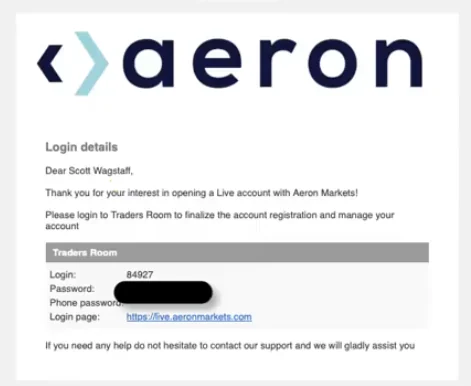
Watch the lesson: KYC and Onboarding WalkthroughOptionalWithin 24 hours you will receive an email from [email protected] titled Login details. It contains your Traders Room login number, your password, and the login page link.
Log in to your Aeron Markets back office
Watch the lesson: Back Office Overview & Dashboard TourOptionalUsing the login details from your email, sign in at live.aeronmarkets.com. This portal is called the Traders Room. It is where you will request wallets, make deposits, and connect to social traders.
Upload your KYC documents and accept the terms
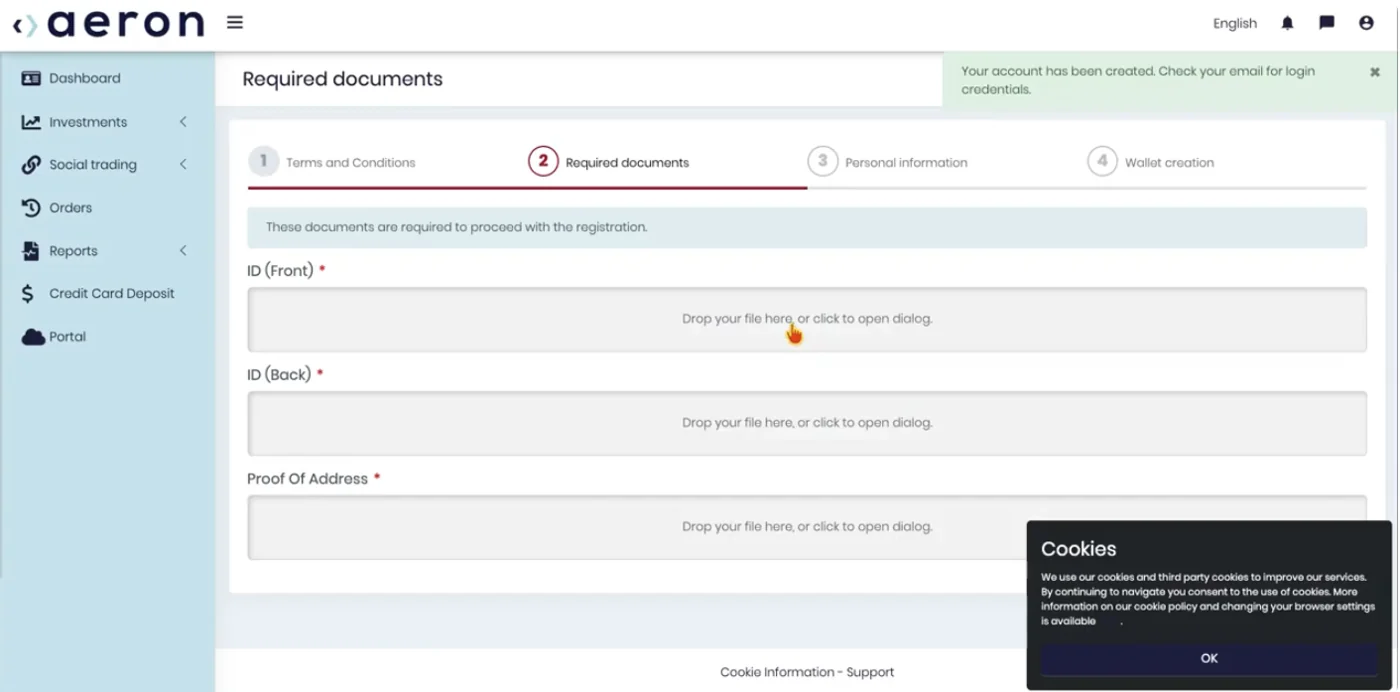
Watch the lesson: KYC and Onboarding WalkthroughOptionalOn first login you will be asked to complete Aeron Markets' own Know Your Customer (KYC) process. Accept the Terms and Conditions, then upload three documents: the front of your ID, the back of your ID, and a proof of address (a recent utility bill or bank statement works well).
Choose your traders
Study the records, then decide on one trader or a mix.
Review each trader's historical and live results
Watch the lesson: Choosing Social Traders & StrategiesOptionalBefore you request any wallets, take time to study the traders. The number of traders you decide to follow determines how many wallets you request in Part C.
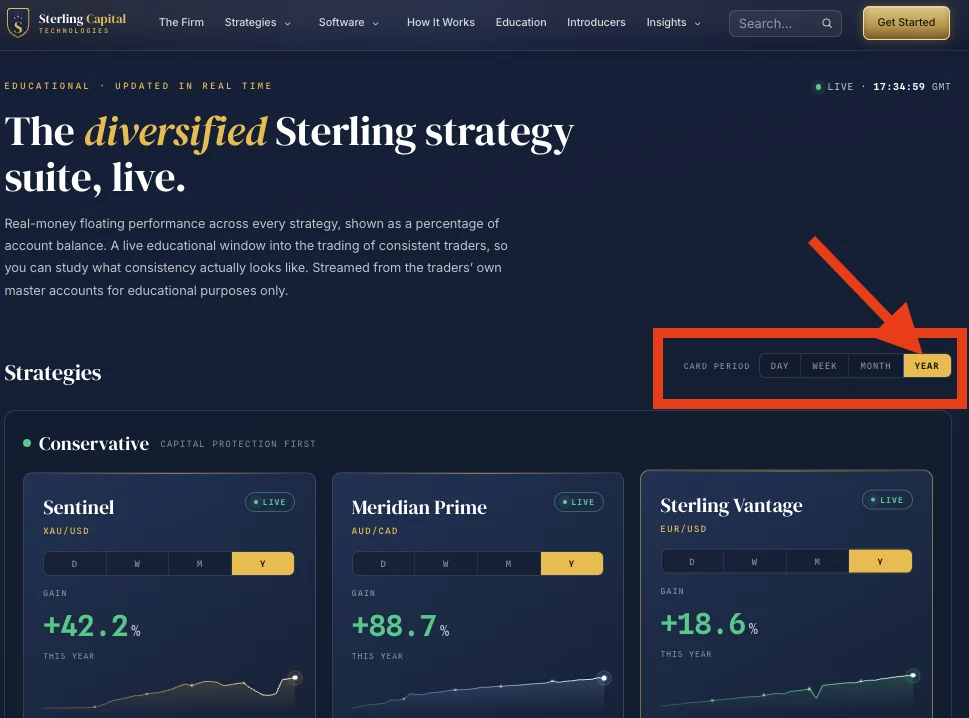
- Live Study at sterlingcapital.tech/live-study. Real-money floating performance for every strategy, streamed from the traders' own master accounts. Use the Card Period toggle to switch between Day, Week, Month, and Year.
- Strategies at sterlingcapital.tech/#strategies. Each card carries a Verify the live data on Myfxbook button (independent third-party verification) and an Investor Deck explaining how the trader works.
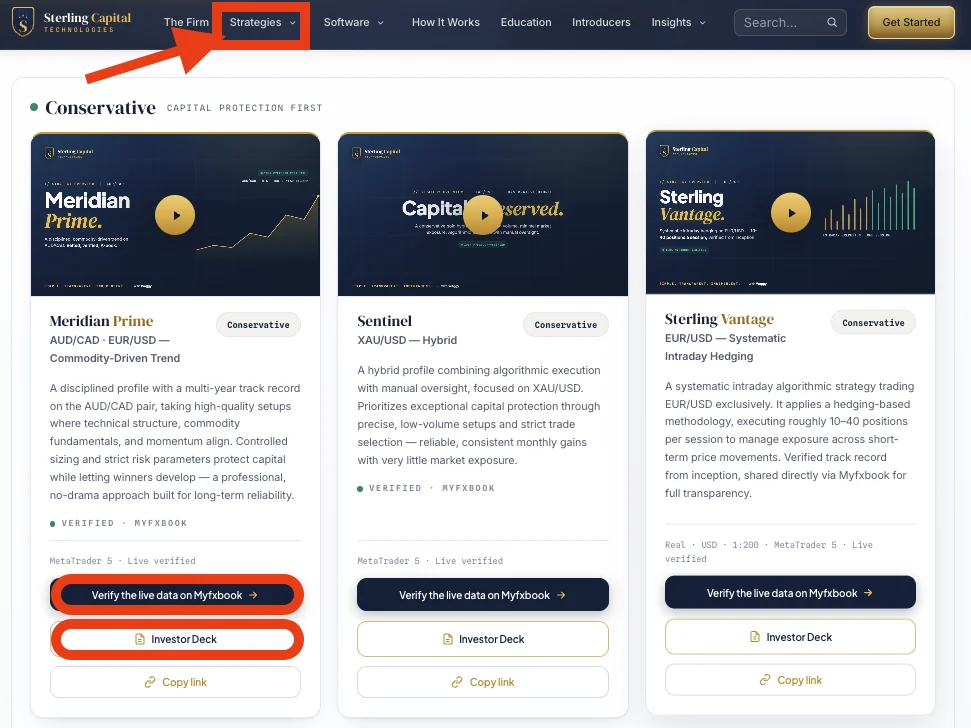
Decide on your mix: conservative, moderate, or higher risk
Watch the lesson: Choosing Social Traders & StrategiesOptionalThe traders are grouped by risk profile. You can follow a single trader, or diversify by opening several trading accounts and spreading them across a mix of profiles. Both approaches are valid. It is entirely your decision.
Request your wallets
One wallet, one trading account, one trader.
Select the wallet type that matches your trader
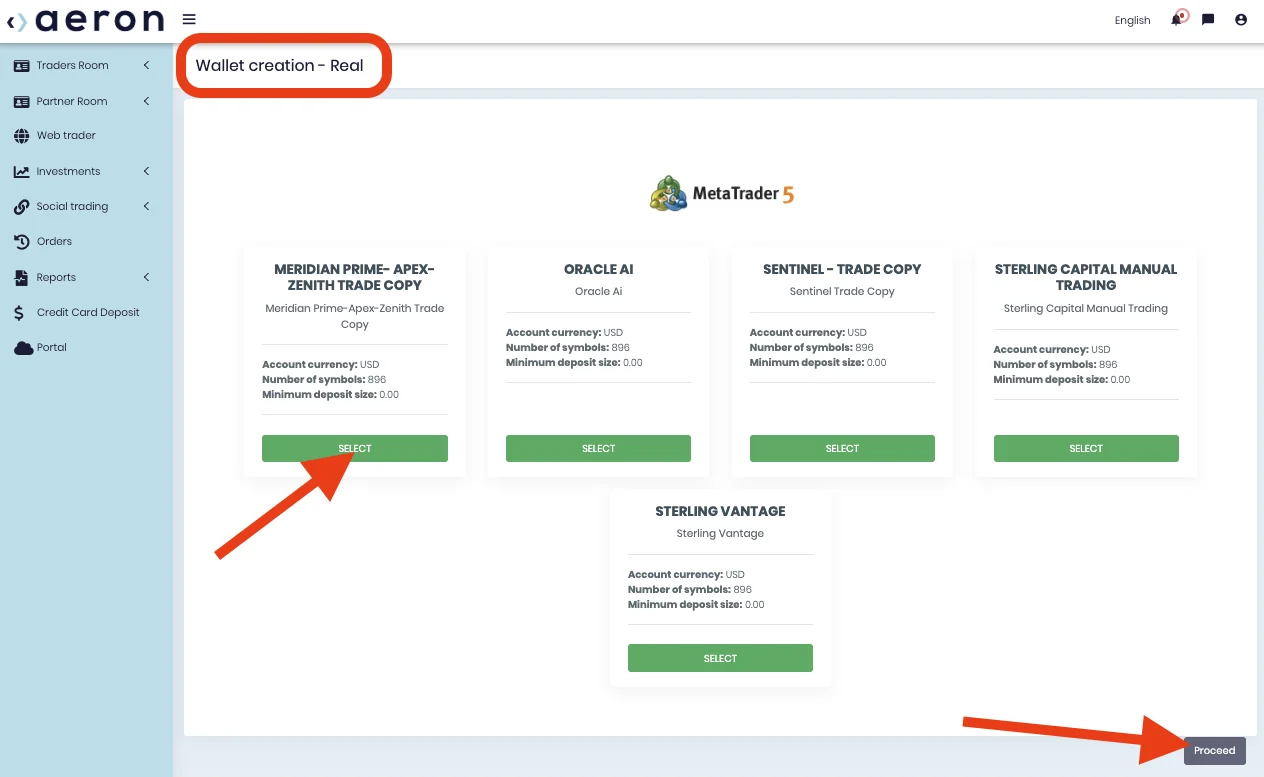
Watch the lesson: Request Your First Trading AccountOptionalIn the Aeron back office a wallet is a trading account. One trading account can only follow one trader at a time, which is why the wallet types are named after the traders. Following three traders means requesting three wallets.
In the Traders Room, go to your Trader Dashboard and click Request new wallet. On the Wallet creation screen, click Select under the wallet type that matches the trader you plan to follow, then click Proceed.
| Wallet type | Use it for | Following more than one? |
|---|---|---|
| Meridian Prime · Apex · Zenith | Meridian Prime, Prime Apex, or Prime Zenith | Request it once per trader (up to three) |
| Sentinel | Sentinel, Sentinel X, or Sentinel Z | Request it once per trader (up to three) |
| Oracle A.I. | Oracle A.I. | One wallet |
| Sterling Vantage | Sterling Vantage | One wallet |
| Sterling Capital Manual Trading | Your own manual trading, not social trading | Optional |
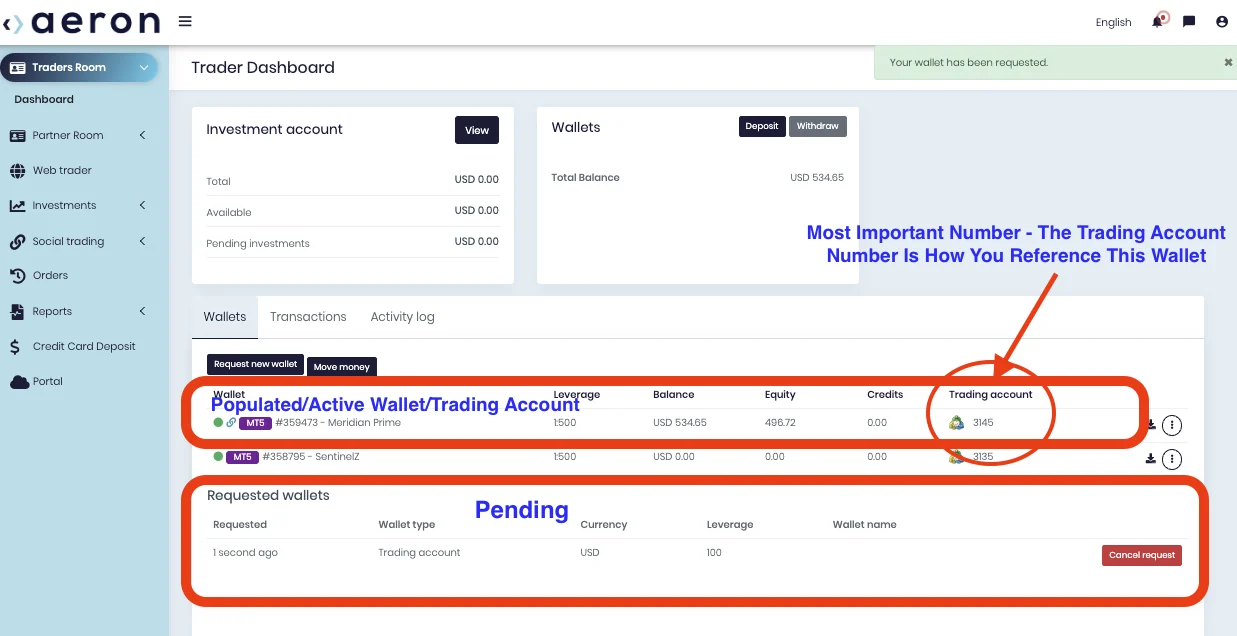
Wait for the wallet to populate (up to 24 hours, Monday to Friday)
Watch the lesson: Request Your First Trading AccountOptionalYour request appears under Requested wallets as pending. The broker creates wallets during UK business hours, Monday to Friday only. Requests made on a weekend are processed on Monday. Once active, the wallet moves into the main list with a green dot, an MT5 badge, and, most importantly, a Trading account number.
Rename a wallet (optional)
Watch the lesson: Back Office Overview & Dashboard TourOptionalWallets arrive already named after the trader family. If you ever want to tell two similar wallets apart, for example three Sentinel wallets:
- On the Trader Dashboard, click the three dots (⋮) at the far right of the wallet row, just after the Trading account column.
- Choose Rename Wallet.
- Edit the name, for example Sentinel to SentinelZ, and click Save.
Fund your trading accounts
Minimums, bank wire, and crypto, step by step.
Know the minimum balance for each trader
Watch the lesson: Deposit Funds Into Your AccountsOptionalEvery trader has a minimum balance before you can connect a trading account. Fund each wallet to at least the figure below for the trader it will follow.
| Trader | Minimum per trading account |
|---|---|
| Sterling Vantage | $10,000 |
| Oracle A.I. | $5,000 |
| Meridian Prime · Prime Apex · Prime Zenith | $2,500 each |
| Sentinel | $500 |
| Sentinel X · Sentinel Z | $1,000 each |
Open the deposit window and choose the wallet
Watch the lesson: Deposit Funds Into Your AccountsOptionalOn the Trader Dashboard click Deposit. In the Wallet dropdown, select the wallet you want to fund. Each wallet is listed with its trader name and trading account number, so pick carefully if you hold more than one.
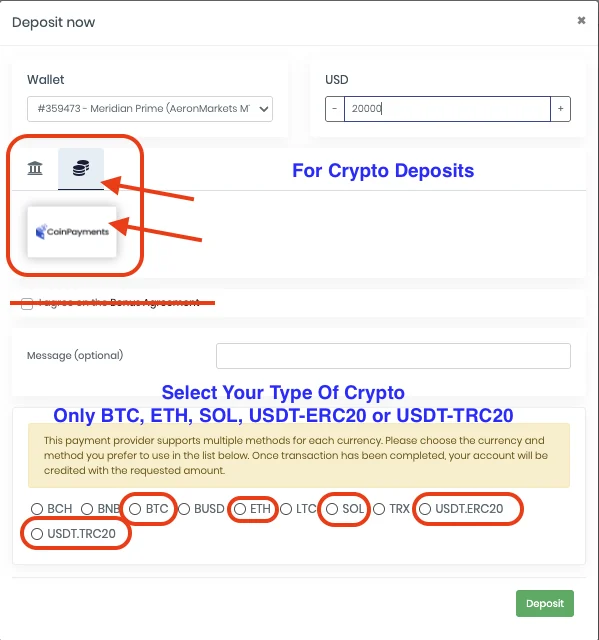
Type the amount in USD, then choose a funding method using the two icons: the bank icon for a wire transfer, or the coins icon for crypto.
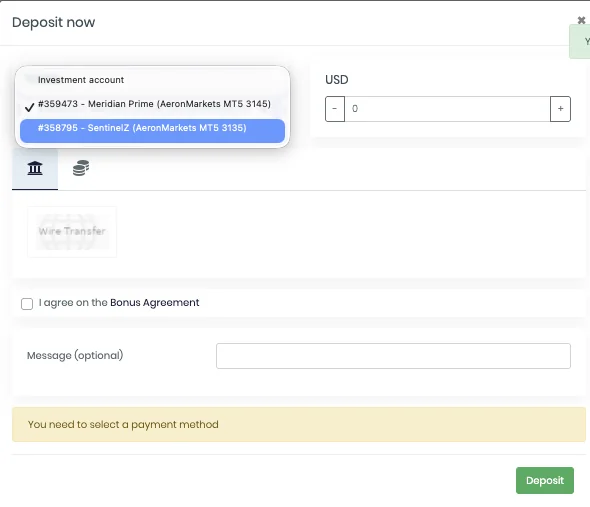
How will you fund this account?
You can always come back and use the other method later.
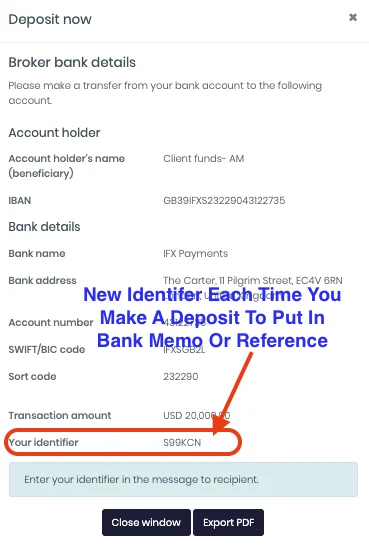
Bank wire: click the bank icon, then Wire Transfer
Watch the lesson: Deposit Funds Into Your AccountsOptionalSelect the bank icon, click Wire Transfer, then Deposit and Proceed. The broker's bank details appear with a code labelled Your identifier. Put this identifier in the memo or reference field of the transfer from your bank. It is how the broker knows which wallet to credit.
Click Export PDF to keep a copy of the details for your bank.
Crypto: click the coins icon, CoinPayments, then choose your coin
Watch the lesson: Making a Live Crypto DepositOptionalSelect the coins icon and click the CoinPayments tile. Only five currencies work for deposits. Ignore every other option.
Select your coin, leave the Bonus Agreement unchecked, and click Deposit, then Proceed.
Send the exact amount shown on CoinPayments within 3 hours
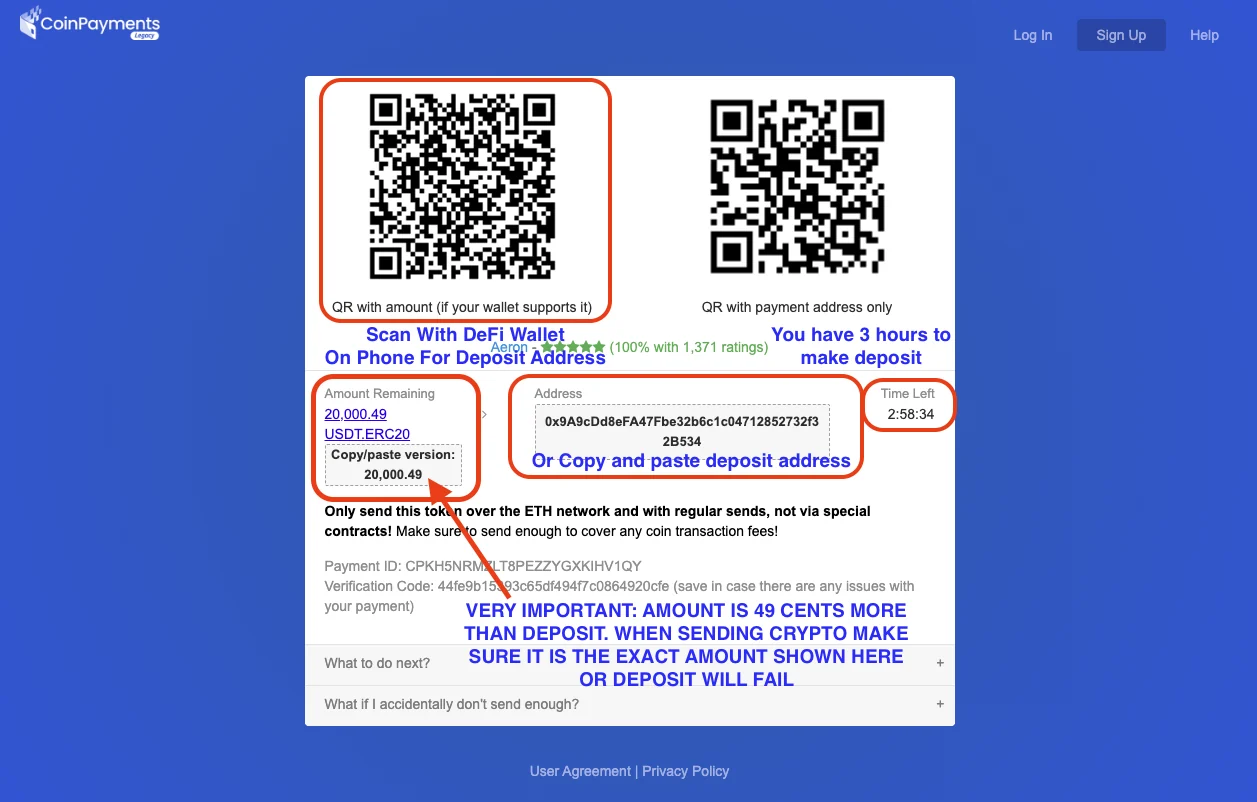
Watch the lesson: Making a Live Crypto DepositOptional- Amount Remaining will always be slightly more than the USD figure you typed, usually a few cents (for example $20,000 becomes 20,000.49 USDT). Send that exact amount. A different figure will delay or fail the deposit.
- Address: copy and paste it into your wallet, or scan the left-hand QR code (with amount) using the DeFi wallet on your phone so the address and amount populate for you.
- Timer: you have 3 hours to complete the transfer. If it runs out the deposit fails and you must start a new one.
- Send over the correct network only, with a regular transfer, not a smart-contract send. Cover any network fee on top.
| Method | Processing time |
|---|---|
| Crypto | Auto-credited, typically within minutes, for amounts under $10,000. Over $10,000 requires broker approval, up to 24 hours, Monday to Friday only. |
| Bank wire | 24 to 48 hours, depending on your bank type and location. |
Which trader are you connecting this account to?
Sentinel, Sentinel X, and Sentinel Z use Direct Connect. Everyone else uses the social trading board.
Connect to a social trader
Meridian Prime, the Primes, Oracle A.I., and Sterling Vantage.
Open Social Trading and click Browse signals
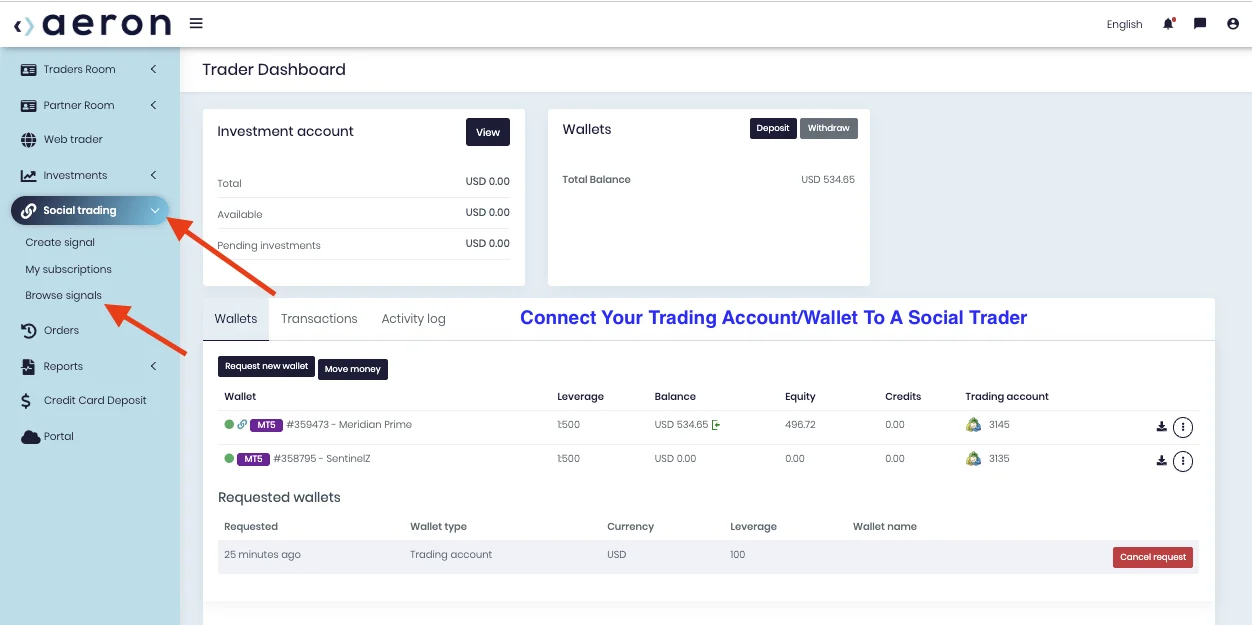
Watch the lesson: Connect to a Social TraderOptionalWith your wallet funded, open the Social trading tab in the left-hand menu of the Traders Room and click Browse signals.
Find your trader and click Follow
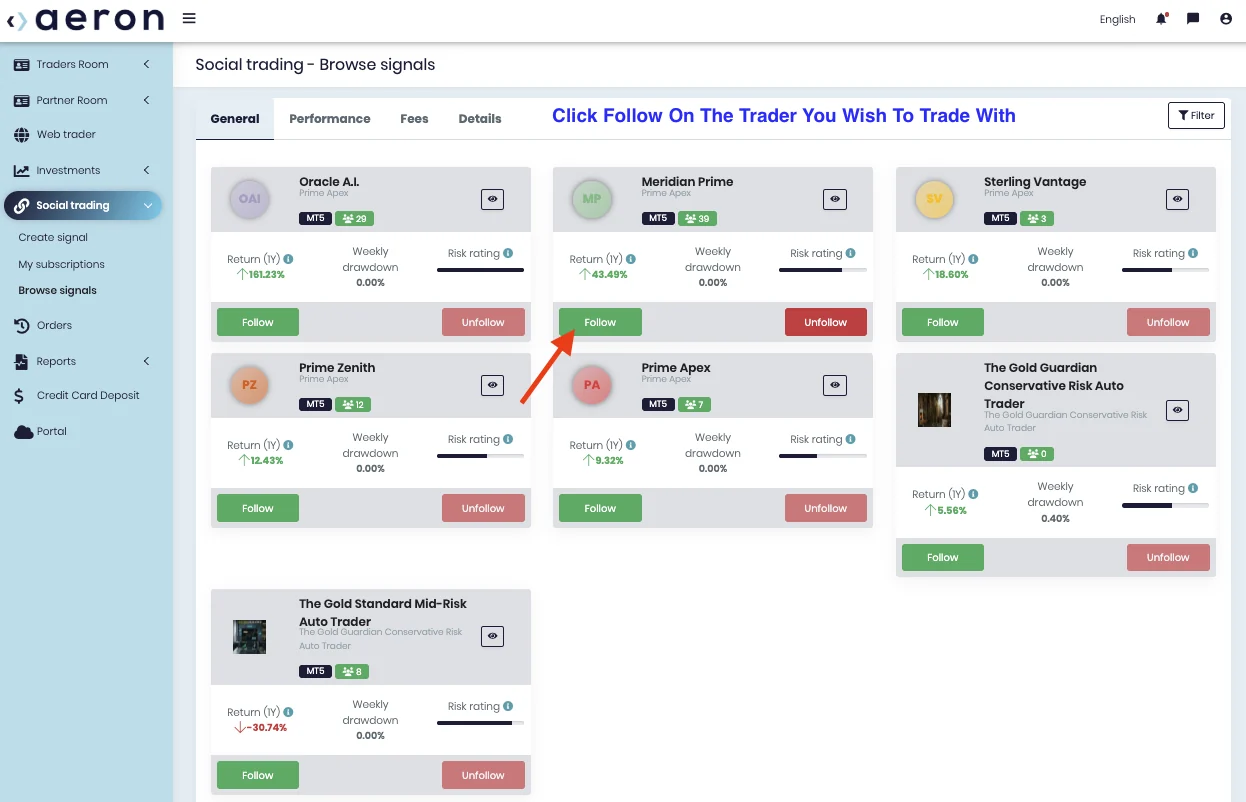
Watch the lesson: Connect to a Social TraderOptionalLocate the trader you funded a wallet for and click the green Follow button beneath their card. The example follows Meridian Prime. The Performance, Fees, and Details tabs let you review each signal before you commit.
Select the matching wallet and check the minimum
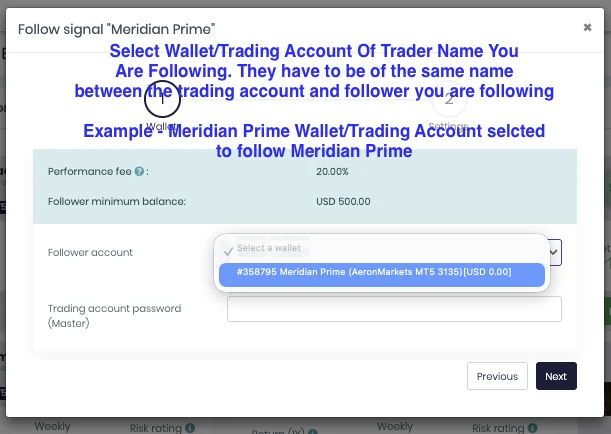
Watch the lesson: Connect to a Social TraderOptionalThe Follow window shows the trader's performance fee and minimum balance. In Follower account, choose the wallet with the same name as the trader you are following. For Meridian Prime, select your Meridian Prime wallet.
If your wallet balance is below the minimum, a red notice appears and you cannot continue. Fund the wallet first (Part D), then come back.
Enter the MT5 master password for that wallet
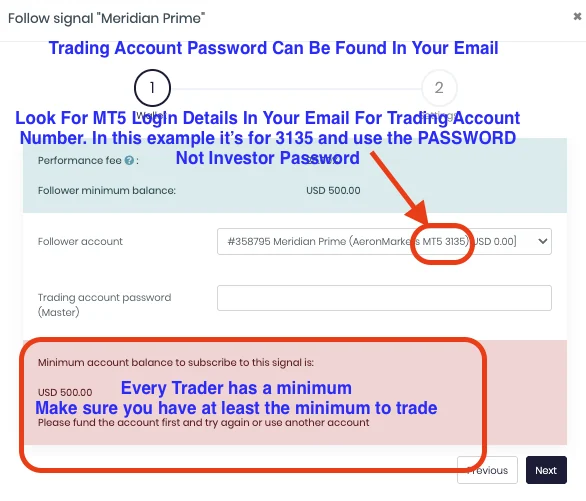
Watch the lesson: Connect to a Social TraderOptionalThe window asks for the Trading account password (Master). This is the MT5 password for the specific wallet you selected, not your back office login.
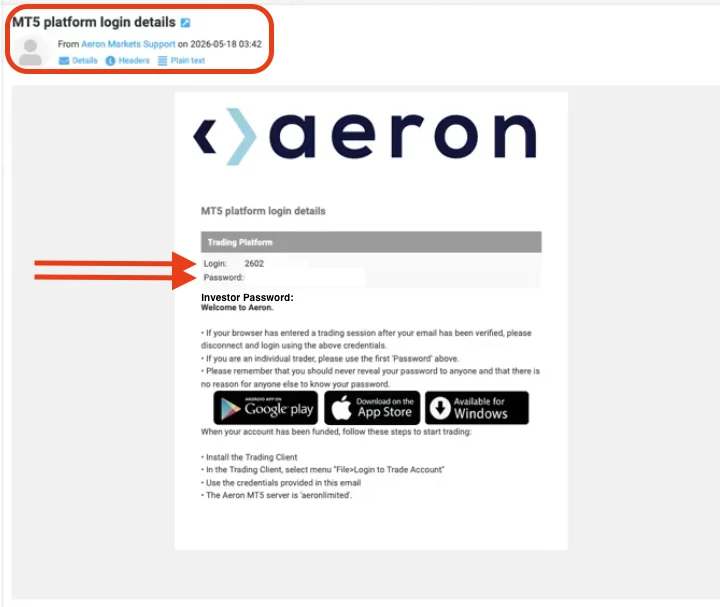
- Note the four-digit trading account number next to the wallet name in the dropdown.
- Search your inbox for an email from [email protected] with the subject MT5 platform login details. You receive one per wallet.
- Find the email whose Login matches that number and copy the Password beneath it.
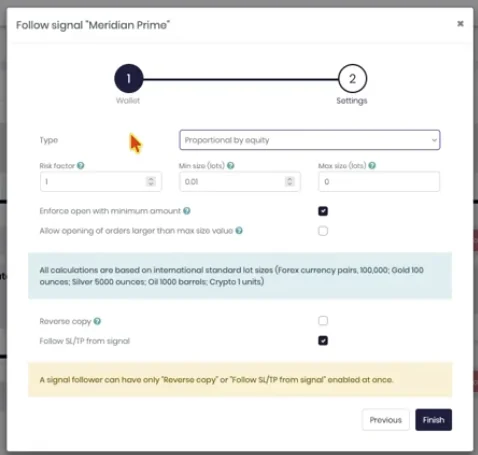
Set the copier: Proportional by equity, risk factor 1, Finish
Watch the lesson: Connect to a Social TraderOptional| Setting | Value |
|---|---|
| Type | Change to Proportional by equity |
| Risk factor | 1 (mirrors the trader's exact risk level) |
| Everything else | Leave as default |
Click Finish. You are now connected.
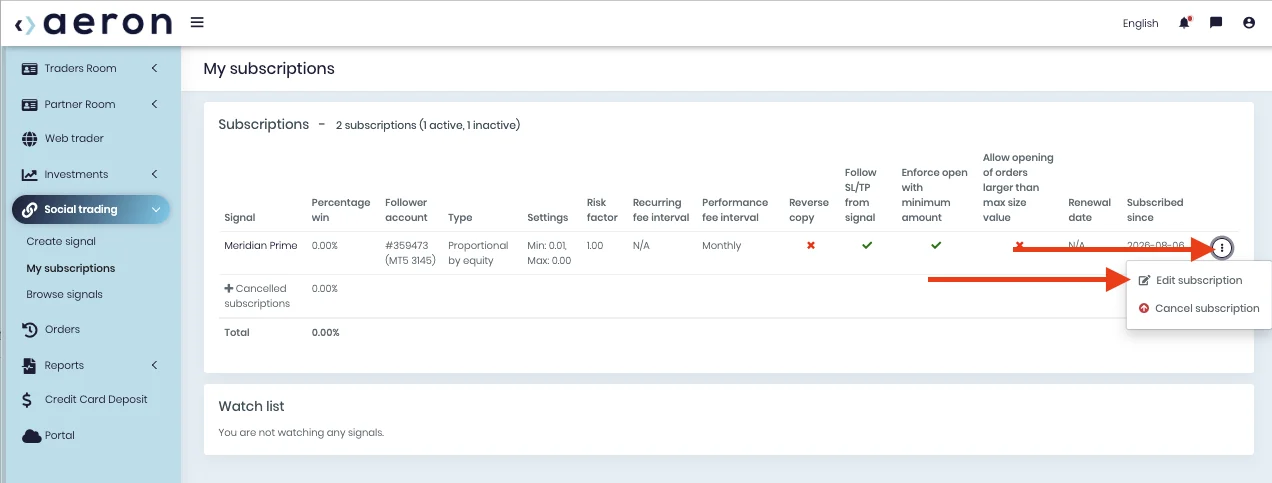
You're connected. Manage it under My subscriptions
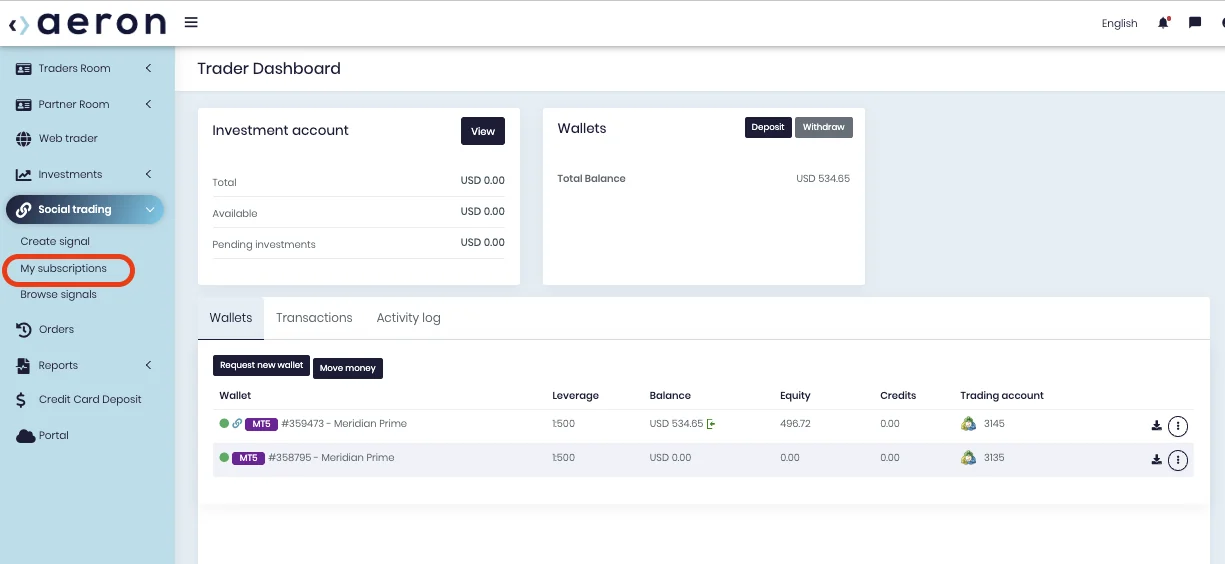
Watch the lesson: Connect to a Social TraderOptionalOpen Social trading → My subscriptions to view your connection. Click the three dots (⋮) at the right of the row to Edit subscription (change copier settings) or Cancel subscription (stop following from that point onwards).
Are you also connecting a Sentinel account?
Sentinel Suite: Direct Connect
Sentinel, Sentinel X, and Sentinel Z use Direct Connect, not the social trading board.
Request and fund a Sentinel wallet for each Sentinel
Watch the lesson: Why the Sentinel Suite Needs Direct ConnectOptionalThe Sentinel Suite trades very quickly, typically in and out of a position in around 8 seconds. To ensure every trade executes faithfully into your account, the suite runs on a dedicated Direct Connect service at a small cost of $20 per month per trading account.
Use Request new wallet in your Aeron back office and select the Sentinel wallet type (Part C). One wallet, one trading account, one trader: to follow all three Sentinels, request three Sentinel wallets. Then fund each one (Part D). Sentinel X and Sentinel Z require a minimum of $1,000 per trading account; Sentinel itself starts at just $500.
Open the Direct Connect page and click Activate
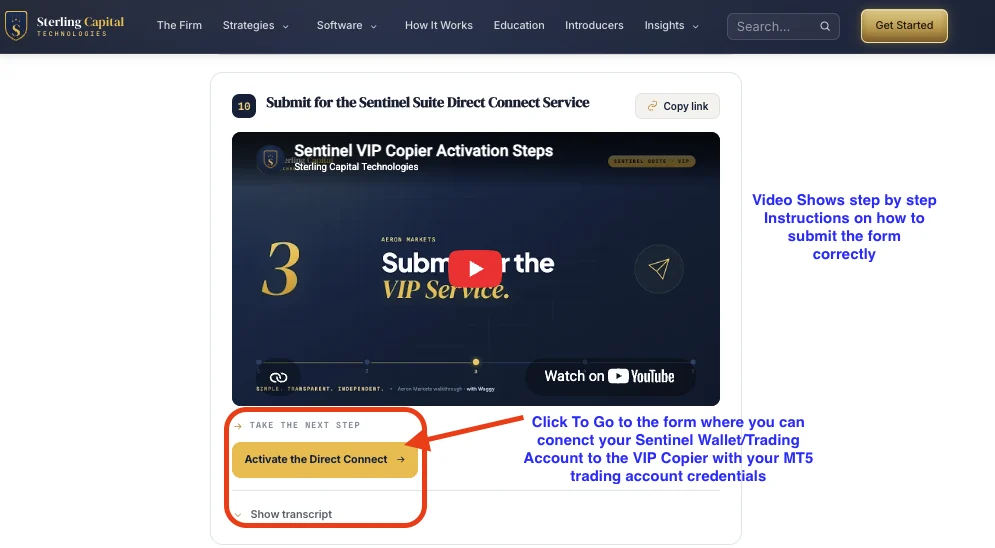
Watch the lesson: Activate the Sentinel SuiteOptionalGo to the Activate the Sentinel Suite lesson. The video walks through the form step by step. When you are ready, click Activate the Direct Connect. You will be asked to sign up with your email to receive Direct Connect access, which unlocks the form.
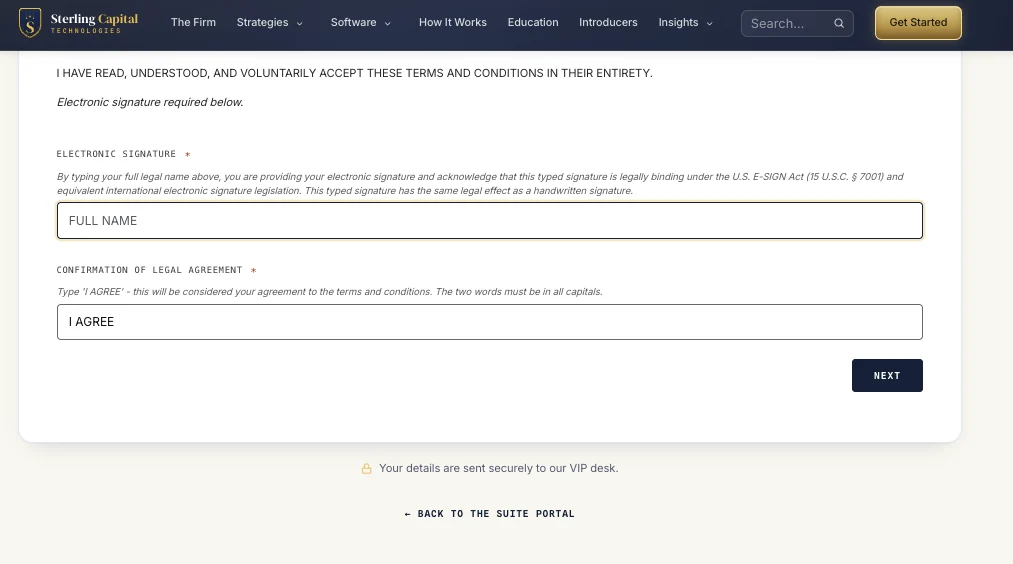
Accept the terms with your electronic signature
Watch the lesson: Activate the Sentinel SuiteOptionalRead the terms, type your full legal name as your electronic signature, then type I AGREE in capitals in the confirmation box. Click Next.
Fill in your applicant information
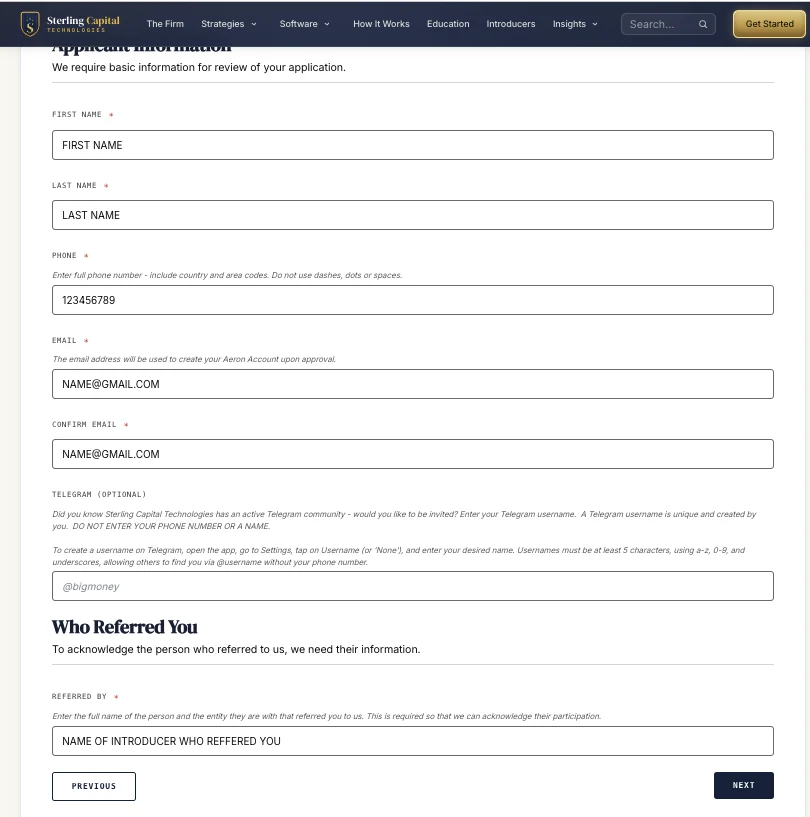
Watch the lesson: Activate the Sentinel SuiteOptionalEnter your first and last name, phone number (country and area code, no spaces), and email. Use the same email as your Aeron account. Telegram is optional: enter your Telegram username if you would like an invite to the Sterling community.
Under Who Referred You, enter the full name of the introducer who referred you so they can be acknowledged. Click Next.
Choose the Sentinel, enter that wallet's account number and MT5 password
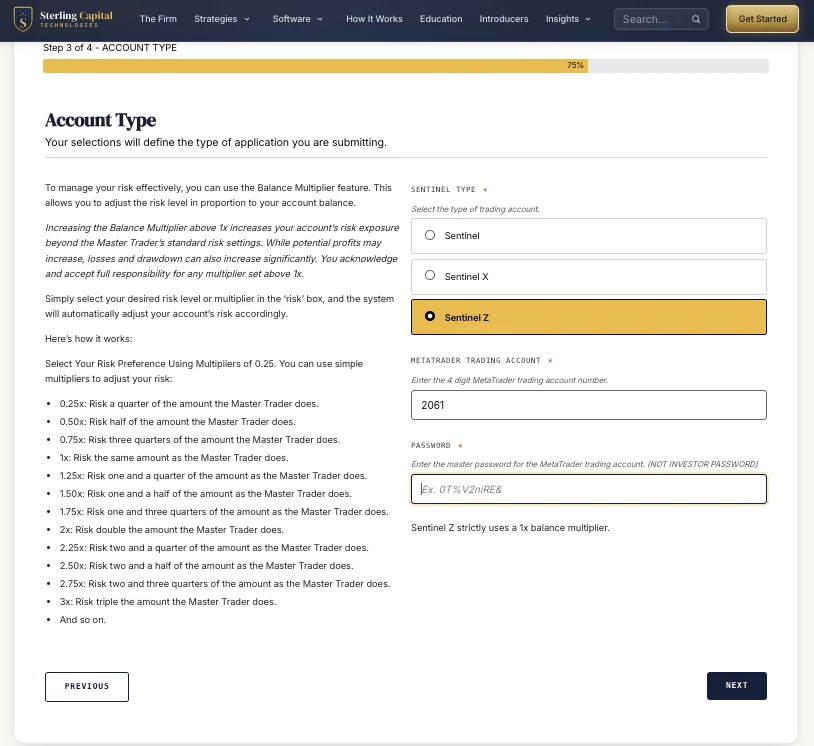
Watch the lesson: Activate the Sentinel SuiteOptionalSelect the Sentinel you are connecting: Sentinel, Sentinel X, or Sentinel Z. Then enter:
- MetaTrader trading account: the four-digit number of the specific Sentinel wallet. Cross-check it against the named wallet on your Trader Dashboard.
- Password: the master password for that account from your MT5 platform login details email. Not the investor password.
Submit, then wait for confirmation
Watch the lesson: Activate the Sentinel SuiteOptionalClick Next, review, and Submit. A member of the Sterling team will reply within 24 to 48 hours confirming your connection is live. Connecting a second or third Sentinel? Submit the form again, once per wallet.
Need to change something later? Use Adjust Your Sentinel Suite Settings to change copier settings, or End Sentinel Suite Access to stop all new trades on that trading account from that point onwards.
Monitor on the MetaTrader 5 app
Watch your accounts on your phone, safely.
Download MetaTrader 5
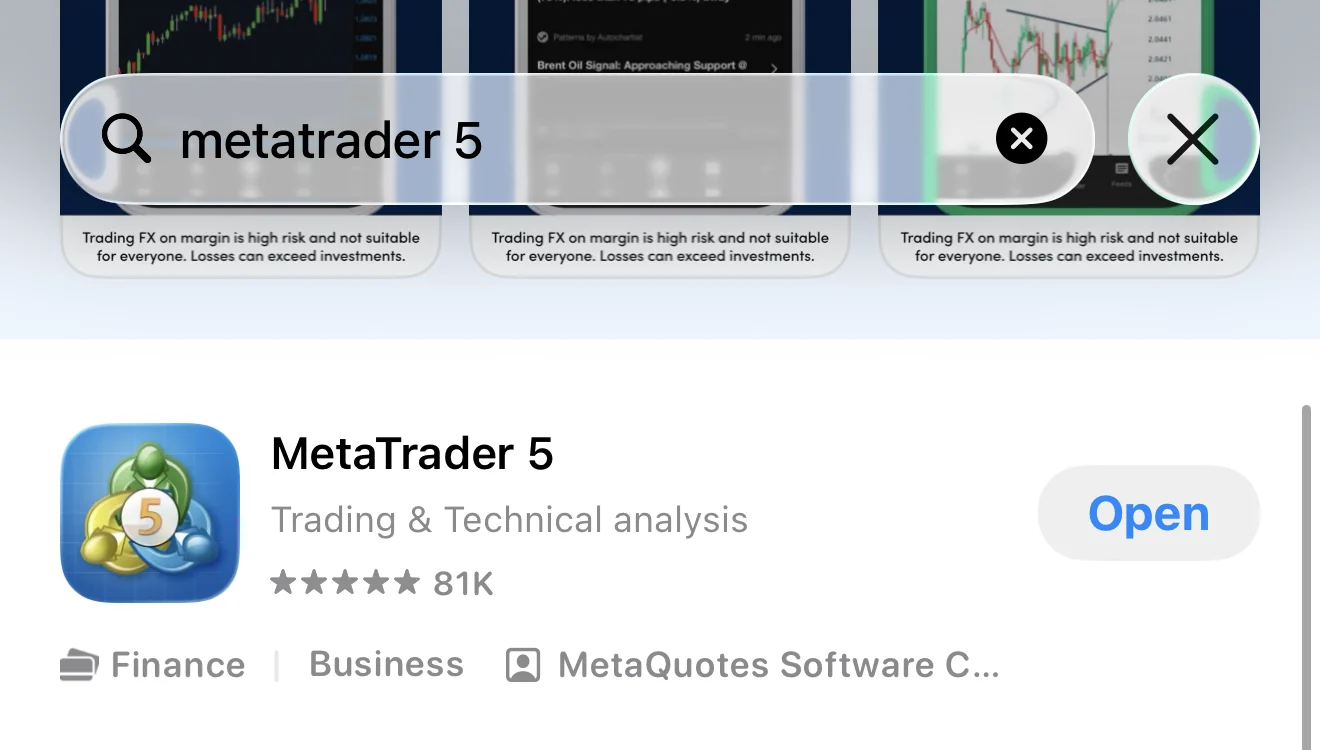
To watch your trading accounts on the go, download the MetaTrader 5 (MT5) app by MetaQuotes from the App Store or Google Play.
Search for Aeron and log in with your MT5 credentials
Open the app, go to Settings → New Account, and in the broker search type Aeron. Select Aeron Limited. Then enter the login number and password from your MT5 platform login details email. Add one login per wallet if you hold several.

You're set up and ready to go.
Questions? Your Sterling Capital Technologies introducer is here to help at every stage, or reach the team directly at [email protected].